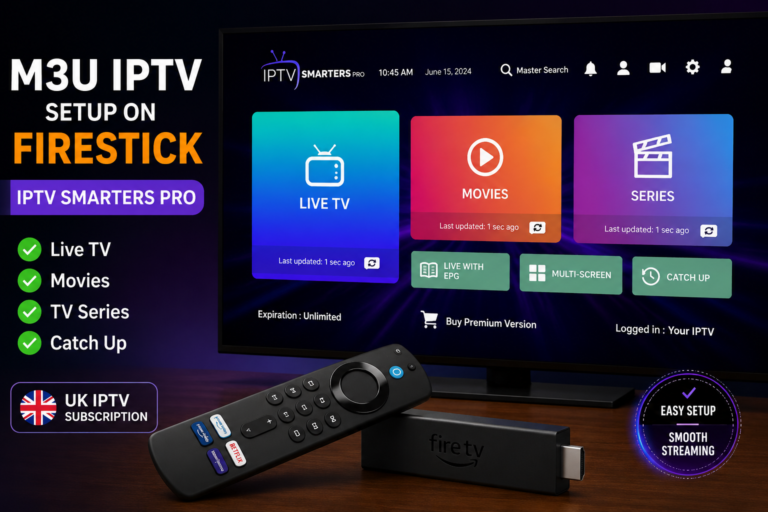
How to Install IPTV Smarters Pro on Firestick (2026 Guide)
Installing IPTV Smarters Pro on Firestick takes about five minutes once you know the steps. Here’s the full walkthrough, from enabling sideloading to loading your first playlist.
IPTV Smarters Pro remains one of the most widely used IPTV players for Amazon Firestick thanks to its simple, beginner-friendly interface and broad support for M3U and Xtream Codes playlists. It isn’t available through the Amazon Appstore, so it’s installed by sideloading — a completely normal process on Fire TV devices, not a hack.
Before You Start
- A Firestick or Fire TV device connected to Wi-Fi
- An Amazon account signed in on the device
- An IPTV subscription or M3U/Xtream Codes playlist ready to enter once the app is installed
Step 1: Enable Apps from Unknown Sources
Go to Settings > My Fire TV > Developer Options. If Developer Options isn’t visible, go to My Fire TV > About and click on the device name several times until it appears. Once inside Developer Options, turn on Apps from Unknown Sources and confirm when prompted.
Step 2: Install the Downloader App
Search for “Downloader” in the Amazon Appstore and install it — it’s free and is the standard tool for sideloading apps that aren’t listed on the Appstore.
Step 3: Download IPTV Smarters Pro
Open Downloader and type in the Downloader Code for IPTV Smarters Pro: 6468112. Select Go and let Downloader fetch the APK file. If this code ever stops resolving, type in the official IPTV Smarters Pro download URL instead — codes are reassigned periodically, but the official URL never expires.
Step 4: Install the App
Once the download finishes, select Install. Fire TV will run its standard security check since the app comes from outside the Appstore — this is expected. When installation completes, select Done, and you can delete the APK file when prompted to free up storage.
Step 5: Add Your Playlist
Open IPTV Smarters Pro and choose how you’ll connect:
- Xtream Codes API: Enter the server URL, username, and password provided by your IPTV service.
- M3U URL: Paste the direct playlist link your provider gave you.
Save your details and the app will load your channel list and EPG automatically.
Fixing Common IPTV Smarters Installation Problems
- “Install blocked” message: Apps from Unknown Sources isn’t enabled — recheck Step 1.
- App installs but playlist won’t load: Double-check your Xtream Codes or M3U details for typos, and confirm your subscription is active.
- Buffering after setup: Usually a network issue rather than an app issue — try a wired connection or restart your router.
- Downloader can’t find the file: The URL or code may be outdated — go back to the official source rather than an old tutorial link.
Related guides: IPTV Smarters downloader code, explained | Best IPTV app for Firestick
Frequently Asked Questions
Is IPTV Smarters Pro free to install?
Yes, the app itself is free. Your IPTV subscription or playlist is a separate purchase from a provider of your choice.
Do I need a downloader code to install it?
No — a code is just a shortcut for typing the URL in Downloader. Typing the full link works exactly the same way.
Why isn’t IPTV Smarters Pro on the Amazon Appstore?
Amazon’s Appstore has strict content policies for streaming apps, so most IPTV players are distributed directly by their developers instead and installed via sideloading.
Is sideloading IPTV Smarters Pro safe?
Sideloading itself is a standard, supported Fire TV feature. Stick to the official download source for the app, and keep in mind that the legality and safety of what you stream depends on your playlist or subscription provider, not the player app.
How do I update IPTV Smarters Pro on Firestick?
Reinstall the latest APK from the official source using the Downloader app — IPTV Smarters Pro doesn’t auto-update like Appstore apps, so periodically checking for a newer version is worth doing. See our downloader codes guide for the current code.
Can I install IPTV Smarters Pro on a regular TV, not just Firestick?
IPTV Smarters Pro is available for Android TV boxes and Android-based smart TVs in addition to Firestick, though the installation steps vary slightly by platform.
Conclusion
Installing IPTV Smarters Pro on Firestick is a five-step process: enable sideloading, install Downloader, fetch the APK, install it, and add your playlist. None of it requires technical expertise — just following the steps above in order.
About the Author
James Whitfield is a home entertainment technology specialist with over 9 years of experience in IPTV systems, streaming devices, and UK digital media. He has helped thousands of UK households cut the cord from traditional cable and build smarter, more affordable streaming setups using devices like Amazon Firestick.