TiviMate Downloader Code 2026: Install on Firestick
Published · Updated
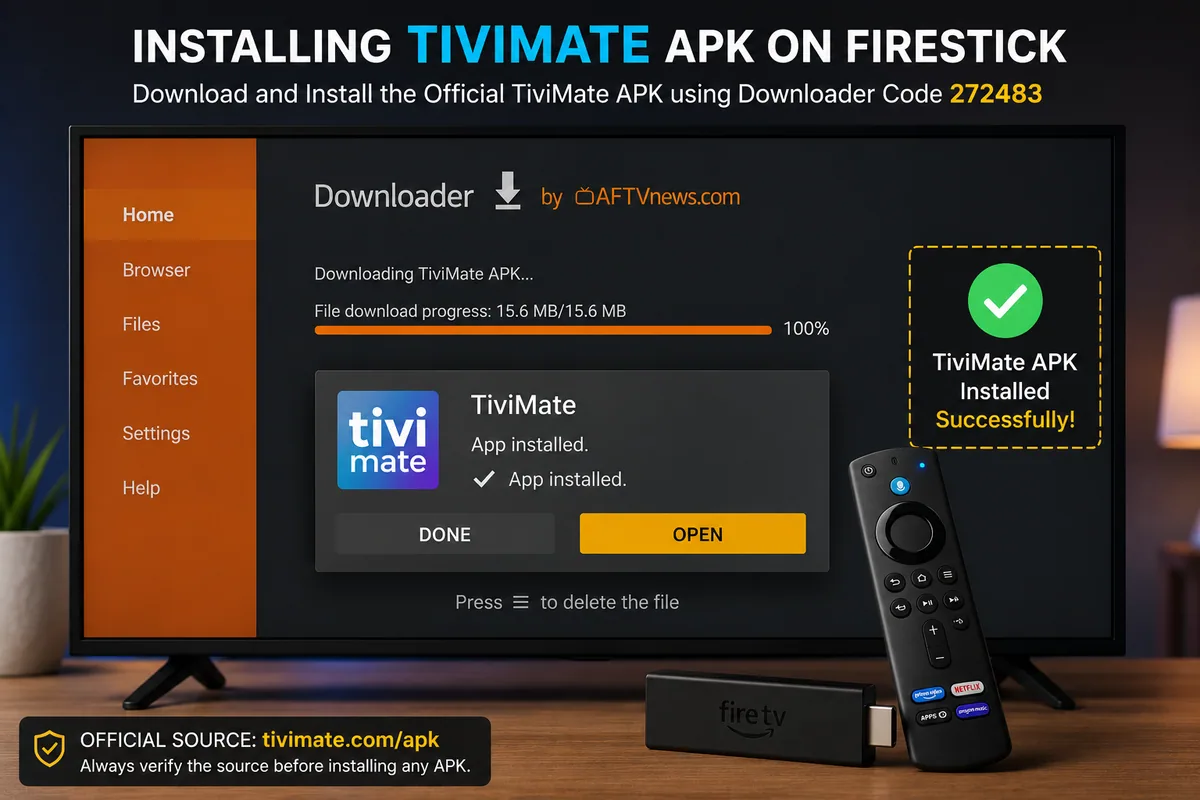
The current TiviMate Downloader Code for 2026 is 272483.
A Downloader code is a short numeric shortcut that redirects the Downloader app to a specific web address. Instead of typing a long APK URL with a Firestick IPTV remote, users can enter a short code to reach the installation page more quickly.
For TiviMate, the code directs users to the official APK download address.
TiviMate Download Details
- Downloader code: 272483
- Direct address: tivimate.com/apk
- App type: IPTV media player
- Best suited for: Fire TV and Android TV devices
- Playlist required: Yes
- Channels included: No
- Premium required: No, although some features are restricted in the free version
Downloader codes can change, expire, or stop working if the destination is updated. Before installing anything, always check where the code redirects and confirm that the file comes from the official TiviMate source or another trusted location.stalling an APK and avoid unofficial files that claim to offer modified or fully unlocked versions of TiviMate.
How to Install TiviMate on Firestick in 2026
Installing TiviMate on an Amazon Firestick involves four main steps:
- Install the Downloader app.
- Allow Downloader to install apps from outside the Amazon Appstore.
- Enter the TiviMate Downloader code.
- Download and install the TiviMate APK.
Follow the full process below.
Step 1: Install the Downloader App
Downloader allows Fire TV users to enter web addresses and short numeric codes using the Firestick remote.
To install it:
- Open the Fire TV home screen.
- Select Find.
- Choose Search.
- Type Downloader.
- Select the official orange Downloader app.
- Choose Download or Get.
- Wait for the installation to complete.
Open Downloader once after installation. This allows Fire OS to recognise the application before you change its installation permissions.
Step 2: Enable Developer Options on Firestick
Fire TV devices normally restrict APK installations from applications outside the Amazon Appstore. Before installing TiviMate manually, you need to allow Downloader to install the APK.
Follow these steps:
- Open Settings from the Fire TV home screen.
- Select My Fire TV.
- Open Developer Options.
- Select Install Unknown Apps.
- Find Downloader.
- Change its permission to On.
On some Fire TV devices, Developer Options may be hidden by default.
How to Reveal Hidden Developer Options
- Open Settings.
- Select My Fire TV.
- Choose About.
- Highlight the name of your Fire TV device.
- Press the select button on the remote seven times.
- Return to the previous menu.
Developer Options should now appear.
Only enable installation permission for applications you trust. Once TiviMate has been installed successfully, you can switch Downloader’s permission back to Off.
Step 3: Enter the TiviMate Downloader Code 2026
Once Downloader has permission to install applications:
- Open the Downloader app.
- Select the URL or code field.
- Enter 272483.
- Select Go.
- Wait for the TiviMate download page to open.
- Check that the destination is the expected TiviMate source.
- Start the APK download.
You can also enter the direct address:
tivimate.com/apk
Using the direct address can be useful if the short code stops working or fails to redirect correctly.
Step 4: Install the TiviMate APK
After the APK has finished downloading, Fire OS should display the installation screen.
- Select Install.
- Wait for the installation to complete.
- Choose Done or Open.
- Return to Downloader.
- Delete the downloaded APK file when prompted.
Deleting the APK does not remove TiviMate from your Firestick. It only deletes the installation file and helps recover storage space.
You can now access TiviMate from Your Apps & Channels.
How to Move TiviMate to the Firestick Home Screen
Newly installed applications may appear near the end of the Fire TV apps list.
To move TiviMate to a more convenient position:
- Hold the Home button on the Firestick remote.
- Select Apps.
- Highlight TiviMate.
- Press the menu button on the remote.
- Choose Move or Move to Front.
- Place the app in your preferred position.
This makes TiviMate easier to access directly from the Fire TV home screen.
How to Set Up TiviMate After Installation
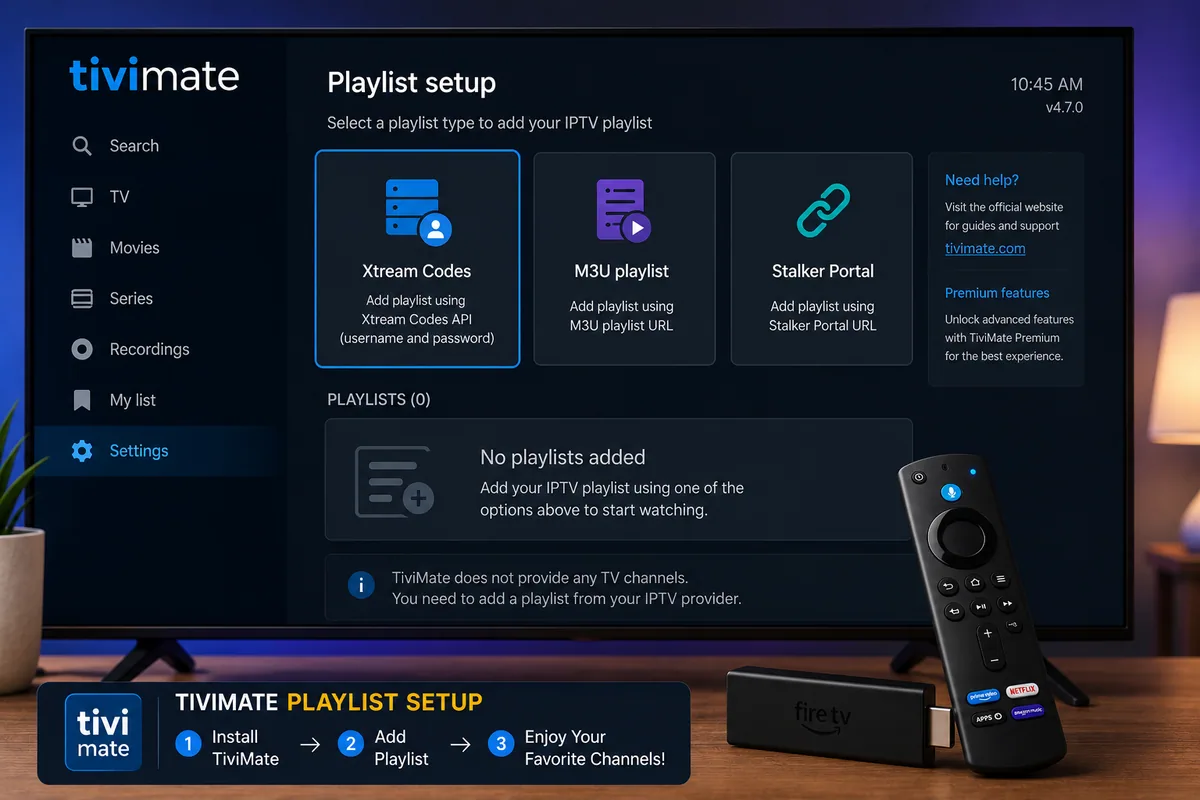
TiviMate will not display television channels immediately after installation because the app does not include content of its own. You need to connect a playlist from an authorised IPTV provider, organisation, or personal media source.
Open TiviMate and select Add Playlist. Depending on the app version, several connection methods may be available.
Xtream Codes Login
For an Xtream Codes setup, you will normally need:
- Server address
- Username
- Password
Enter each detail exactly as supplied by your authorised service provider. An incorrect character, extra space, or wrong server address can prevent the playlist from loading successfully.
M3U Playlist
An M3U setup usually requires a complete playlist URL.
Enter the address carefully and give the playlist a clear, recognisable name so it is easier to manage later.
Stalker Portal
Some services use a portal address together with device-specific information.
Use this connection method only when your authorised provider supports Stalker Portal and has supplied the required details.
After adding the playlist, allow TiviMate enough time to import and organise the available channels, categories, and programme-guide information.
Is the TiviMate Downloader Code a Premium Code?
No. The TiviMate Downloader Code 2026 is not a Premium activation code.
Code 272483 is simply a shortcut that directs Downloader to the TiviMate APK download location. It does not activate Premium features, unlock devices, provide playlists, or include television channels.
TiviMate Premium is managed separately through the official TiviMate account system or TiviMate Companion where applicable. The Companion app is used for managing Premium access and activated devices; it is not the IPTV player itself.
Be cautious of websites offering “free TiviMate Premium codes,” cracked APK files, or shared account credentials. These may contain modified software, expose account information, or be associated with unauthorised services.
TiviMate Free vs Premium
The free version of TiviMate can provide basic playlist playback, while Premium access unlocks additional management, playback, and customisation features.
Depending on the current app version, Premium functionality may include:
- Multiple playlist management
- Advanced electronic programme guide options
- Recording features
- Catch-up support
- Customisable channel groups
- Parental controls
- Multiview
- Additional interface settings
- Device management
Feature availability can vary between TiviMate versions and may also depend on what your connected playlist or service actually supports.der.
TiviMate Downloader Code Not Working
A Downloader code may stop working because of a temporary redirect issue, an incorrect entry, a network problem, or a Fire TV permission setting.
Try the following troubleshooting steps.
Check the Code
Confirm that you entered:
272483
Do not include spaces, letters, or punctuation.
Use the Direct Address
If the code does not work, enter the following address directly into Downloader:
tivimate.com/apk
This bypasses the short-code redirect and opens the TiviMate APK location directly.
Restart Downloader
Close Downloader completely and reopen it.
You can also clear the app cache:
- Open Fire TV Settings.
- Select Applications.
- Choose Manage Installed Applications.
- Select Downloader.
- Choose Force Stop.
- Select Clear Cache.
- Reopen Downloader and try again.
Avoid using Clear Data unless necessary, as this can remove Downloader’s saved settings and browsing history.
Check Your Internet Connection
Open another application or website to confirm that the Firestick is connected to the internet.
If pages are not loading, restart both the router and Firestick before trying the download again.
Check Installation Permission
Return to:
Settings → My Fire TV → Developer Options → Install Unknown Apps
Make sure Downloader is still set to On.
Without this permission, Downloader may be able to download the APK but Fire TV may block the installation.
Free Up Firestick Storage
A Firestick with very little free storage may struggle to download or install APK files.
Remove applications you no longer use and clear large app caches before attempting the installation again.
Update Fire OS
Go to:
Settings → My Fire TV → About → Check for Updates
Install any available Fire OS updates, restart the device, and then try Downloader again.
If the numeric code continues to fail after these checks, use the verified direct address instead of searching for a different code.
TiviMate Installed but Not Showing Channels
Installing TiviMate and loading television content are two separate processes.
If TiviMate opens successfully but does not display any channels or media, check the following:
- Confirm that a playlist has been added.
- Recheck the server address, username, and password.
- Remove any accidental spaces from the login details.
- Confirm with your provider that the subscription is still active.
- Make sure the playlist supports the login method you selected.
- Refresh or update the playlist from TiviMate settings.
- Restart both TiviMate and the Firestick.
- Check whether the connected service is experiencing a temporary outage.
Purchasing TiviMate Premium does not automatically provide television channels. Premium unlocks additional player features, while the playlist or authorised media source must still be added separately.
How to Update TiviMate on Firestick
TiviMate installed manually through an APK may not receive updates through the Amazon Appstore.
To update TiviMate:
- Check the official TiviMate source for the latest available version.
- Open Downloader.
- Enter code 272483 or use tivimate.com/apk.
- Download the latest official APK.
- Install it over the existing version of TiviMate.
In most cases, installing a newer official APK over the current version should preserve your existing settings. However, creating a backup before a major update is a sensible precaution.
Avoid uninstalling the existing app unless necessary, as doing so may remove playlists, settings, and locally stored backups.
Is TiviMate Safe to Install?
TiviMate is generally safest when obtained from its official source. Before installing the APK, verify that the Downloader destination points to the legitimate TiviMate website or another source you have independently confirmed.
Avoid APK files promoted using claims such as:
- TiviMate Premium cracked
- TiviMate fully unlocked
- Free lifetime TiviMate
- Modified TiviMate APK
- TiviMate with free channels
- TiviMate Premium activation code
Modified APK files may contain unwanted changes, outdated components, intrusive software, or malicious code. They may also put account credentials and playlist information at risk.
For a safer installation:
- Download TiviMate from the official source.
- Keep Fire OS up to date.
- Delete the APK file after installation.
- Disable unknown-app installation permission when finished.
- Never share playlist usernames, passwords, or URLs publicly.
- Connect only content and services you are authorised to access.
Is TiviMate Legal?
TiviMate itself is a media player and does not provide television channels, films, or subscription content.
The legality of using the app depends on the content source connected to it and the laws that apply in your location.
Use TiviMate only with playlists, broadcasts, and media that you are legally authorised to access. Installing a media player does not grant permission to watch copyrighted or paid content from an unauthorised source..
Final Words
The latest verified TiviMate Downloader Code 2026 is 272483. Enter this code in Downloader or use tivimate.com/apk to open the official TiviMate APK installation page directly.
After installation, remember that TiviMate is a media player only. It does not include television channels, films, or an IPTV subscription. You must add your own legally authorised playlist before any content appears.
For a safer setup, download the official APK, verify the destination before installing, avoid modified versions, and delete the APK installation file once the process is complete.
Frequently Asked Questions
What Is the TiviMate Downloader Code 2026?
The current TiviMate Downloader Code 2026 is 272483.
Enter the code into the Downloader app to access the TiviMate APK download page.
What URL Can I Use Instead of the TiviMate Code?
You can enter:
tivimate.com/apk
directly into Downloader.
This is useful if the numeric code is unavailable, has stopped working, or does not redirect correctly.
Does TiviMate Come With Free Channels?
No. TiviMate is a media player and does not include television channels, films, premium content, or an IPTV subscription.
You must connect your own authorised playlist or compatible media source.
Is the Downloader Code a TiviMate Activation Code?
No. The Downloader code only provides a shortcut to the APK download location.
TiviMate Premium activation and device management are handled separately through the official TiviMate account system or supported account-management tools.
Can I Install TiviMate on Firestick 4K Max?
Yes, TiviMate can be installed on compatible Fire TV devices, including supported Firestick 4K Max models, using the Downloader method.
Actual performance may depend on factors such as available storage, Fire OS version, network stability, and the quality of the connected media source.
Why Does TiviMate Say “No Playlist”?
TiviMate displays this message when no media source has been added.
Select Add Playlist and enter the M3U URL, Xtream Codes credentials, or another supported connection method supplied by your authorised provider.
Should I Uninstall the Old Version Before Updating?
Usually, no.
Installing a newer official APK over the existing version can preserve your playlists, settings, and preferences. However, creating a backup before a major update is still recommended.
Uninstall the existing version only when necessary, as doing so may remove locally stored settings and playlist information.
Is There a Free TiviMate Premium Code?
There is no legitimate universal code that unlocks TiviMate Premium for free.
Avoid cracked APK files, shared accounts, unofficial activation codes, and websites promising permanent or “lifetime” Premium access without payment. These may contain modified software or put your account information at risk.
About the Author
Daniel Carter is a Firestick and Android TV specialist with practical experience installing, testing, and troubleshooting IPTV media players and streaming devices.
He creates straightforward setup guides covering TiviMate, Downloader, Amazon Fire TV Stick, Android TV, and Google TV devices.
For this guide, Daniel reviewed the installation process and the steps associated with the TiviMate Downloader Code 2026. His work focuses on safer APK installation, accurate device configuration, playlist setup, and practical solutions to common streaming-device problems.
Areas of expertise: Firestick setup, TiviMate installation, Downloader codes, Android TV applications, IPTV player configuration, and streaming-device troubleshooting.