IPTV Smarters Pro on Firestick: Complete Download, Setup and Troubleshooting Guide
Published · Updated
IPTV Smarters Pro is a media player that helps users organise and play live streams, video-on-demand libraries aIPTV Smarters Pro is a media player designed to display live television, on-demand video, series, and other media supplied through an authorised service. The application itself does not create channels, include a television package, or provide free access to paid content.
On an Amazon Fire TV Stick, the app may be installed through an official app store when available or added manually using a trusted application file. After installation, users connect their own authorised playlist or service credentials.
This guide explains how to install IPTV Smarters Pro on Firestick, select the correct login method, configure the player, and troubleshoot common issues without relying on unverified Downloader codes or modified APK files.
Important: IPTV Smarters Pro is a media player, not a content provider. Only connect playlists, accounts, and services that you are legally authorised to use.
What Is IPTV Smarters Pro?
IPTV Smarters Pro is a media-player interface that connects to content supplied by a compatible source. Rather than storing television channels, films, or series itself, the app uses playlist details, server credentials, or media libraries provided by the user or an authorised service provider.
The Smarters platform presents its software as a standalone media player rather than an IPTV subscription or television service. Depending on the device, operating system, and app version, it can provide features for organising content, displaying programme information, managing playlists, and controlling playback.
Supported features may include:
- Live television playback
- Video-on-demand libraries
- Series and episode categories
- M3U playlist support
- Server-based login credentials
- Electronic Programme Guide (EPG) data
- Favourite channels
- Multiple playlists or user profiles
- Subtitle and audio-track selection
- Parental-control options
- External media-player support
- Recently watched content
These features do not provide or guarantee access to any particular television channel or programme. The available content, streaming quality, categories, and programme-guide information depend entirely on the authorised source connected to the application.
What IPTV Smarters Pro Does Not Provide
Confusion around IPTV Smarters Pro is common because the terms “IPTV player” and “IPTV service” are often used as though they describe the same thing.
They do not.
IPTV Smarters Pro does not normally provide:
- A television subscription
- Premium sports channels
- Films or television series
- An M3U playlist URL
- A server address
- A username or password
- Copyright permission for third-party content
Think of IPTV Smarters Pro as a media player with an organised television-style interface. It displays and manages information supplied by another source, but it does not automatically provide or control that source.
This distinction is important for both troubleshooting and legal compliance. If channels are missing, a subscription has expired, or programme-guide information is incomplete, reinstalling the player may not resolve the underlying issue.
Is IPTV Smarters Pro Legal in the UK?
Using a media player such as IPTV Smarters Pro can be legal. The key issue is the content being accessed and whether the user or service provider has permission to distribute or view it.
UK guidance distinguishes between legitimate use of streaming technology and access to copyrighted content without the appropriate rights or payment.
In practical terms:
- Installing a media player is not automatically illegal.
- Playing your own media can be lawful.
- Connecting an authorised playlist can be lawful.
- Using an unlicensed service to access paid content does not become legal simply because it is viewed through a media player.
- Using a VPN does not create content rights or make an unauthorised service lawful.
Be cautious of sellers offering unusually large collections of premium UK channels, newly released films, and pay-TV sports for extremely low annual prices. Claims of this kind should be treated as warning signs rather than proof of value.
Before Installing IPTV Smarters Pro on Firestick
Complete a few basic checks before changing any Fire TV settings or installing additional software.
Update the Fire TV Software
Open:
Settings → My Fire TV → About → Check for Updates
The exact menu wording may vary slightly between Fire TV versions. Installing available system updates first can reduce compatibility issues and installation errors.
Check Available Storage
Go to:
Settings → My Fire TV → About → Storage
Fire TV Sticks have limited internal storage. If your device is nearly full, remove unused applications and unnecessary files before installing anything new.
Low available storage can contribute to:
- Installation failures
- Slow menus
- App crashes
- Failed software updates
- Reduced overall performance
Confirm That Your Media Source Is Authorised
Before configuring IPTV Smarters Pro, you should already have compatible access details from a legitimate source.
These may include:
- An M3U playlist URL
- An authorised server login
- A local playlist file
- Your own compatible media library
Avoid purchasing credentials from anonymous social-media accounts simply because a seller claims to provide access to every premium channel.
Avoid Modified APK Files
Modified or “unlocked” APK files may contain altered code that has not been reviewed or approved by the original developer.
Such files may request unnecessary permissions, display intrusive advertising, expose account credentials, or stop functioning after a Fire OS update.
Use an official application listing whenever one is available. If manual installation is necessary, obtain the installation file from the genuine developer or another source you have independently verified.
How to Install IPTV Smarters Pro on Firestick
There are two practical installation methods. Start with the Amazon Appstore whenever an official or suitable listing is available, as this is generally the simplest approach.
Method 1: Install Through the Amazon Appstore
Application availability can vary depending on your Fire TV model, Fire OS version, and account region.
- Open the Fire TV home screen.
- Select Find or the search icon.
- Search for IPTV Smarters Pro or Smarters Player.
- Review the developer name, screenshots, and app description carefully.
- Confirm that the listing describes a media player rather than a television subscription service.
- Select Get or Download.
- Wait for the installation to complete.
- Select Open.
Do not assume that every application using the word “Smarters” is the same product. Lookalike apps may use similar names, logos, or interface designs.
When a suitable version is available through the Amazon Appstore, installing it directly from the Fire TV interface is the most straightforward option.
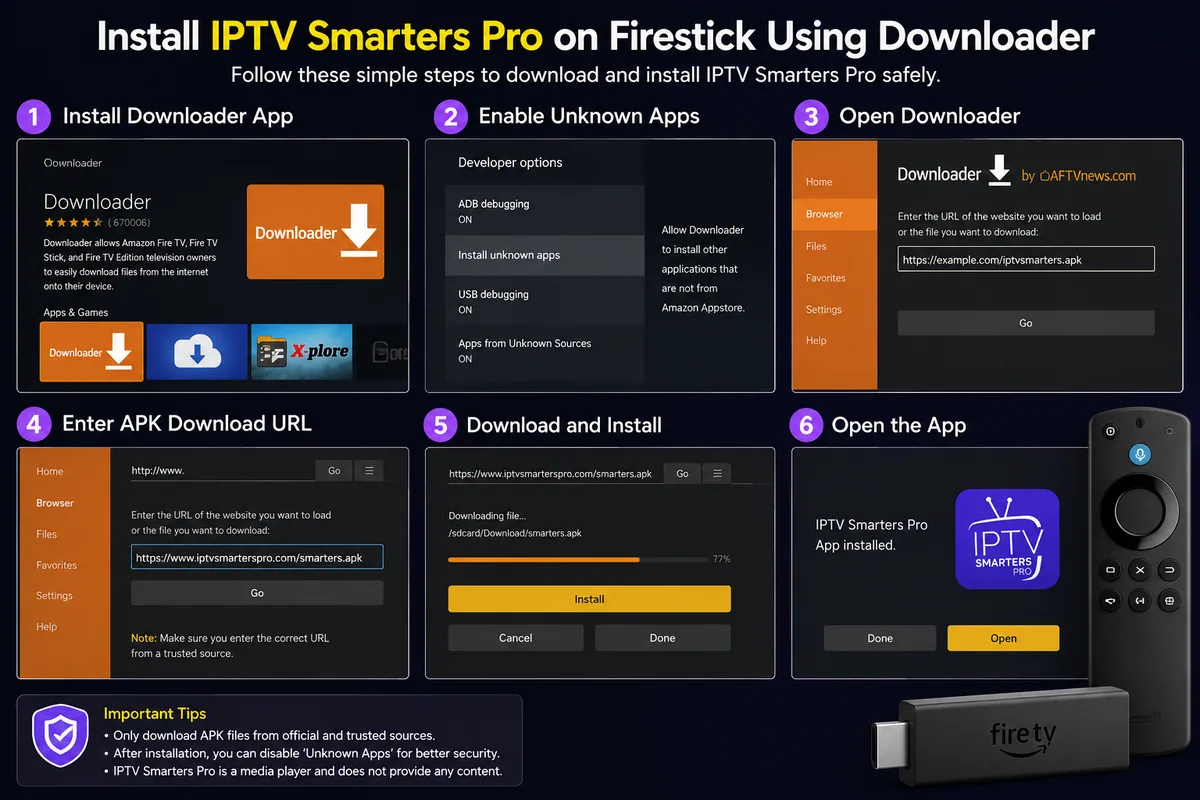
Method 2: Install IPTV Smarters Pro With Downloader
Use this method only when a suitable official Appstore listing is unavailable. Current installation information for supported players is available on our Downloader codes page.
Step 1: Install Downloader
- Return to the Fire TV home screen.
- Open Find.
- Search for Downloader.
- Select the correct application.
- Choose Get or Download.
- Open Downloader once installation is complete.
Step 2: Show Developer Options if They Are Hidden
On some Fire TV software versions, the Developer Options menu may not be visible by default.
- Open Settings.
- Select My Fire TV.
- Open About.
- Highlight the name of your Fire TV device.
- Press the centre or select button on the remote seven times.
- Return to the previous screen.
- Open Developer Options.
On supported Fire TV versions, this process reveals the Developer Options menu when it is hidden.
Step 3: Allow Downloader to Install the App
Open:
Settings → My Fire TV → Developer Options → Install Unknown Apps
Select Downloader and change the permission to On.
You do not normally need to enable ADB Debugging when installing an APK directly through Downloader. ADB is primarily intended for development, testing, and computer-based debugging.
Enabling settings that are not required for the installation provides no practical benefit and may unnecessarily increase device exposure.
Step 4: Enter a Verified Download Address
- Open Downloader.
- Allow any storage permission required to save the installation file.
- Enter the verified address for the genuine APK.
- Confirm that the website or download page belongs to the expected developer.
- Download the installation file.
- Select Install when the Fire TV installation prompt appears.
- Wait for the installation to complete.
- Select Done.
This guide intentionally avoids publishing a permanent Downloader code. Codes can expire, change destination, or later redirect to a different installation file.
A code that was trustworthy when first published should not automatically be assumed safe months later.
Step 5: Delete the APK File
After IPTV Smarters Pro has been installed successfully, return to Downloader and delete the downloaded APK file.
Removing the installer does not uninstall the application. It simply recovers storage space on the Firestick.
Step 6: Disable the Installation Permission
Return to:
Settings → My Fire TV → Developer Options → Install Unknown Apps
Change Downloader back to Off.
There is usually no need to leave this permission enabled once installation is complete. Disabling it helps keep the device configuration more controlled and reduces unnecessary exposure to future installations.en you are not actively installing an app.
How to Set Up IPTV Smarters Pro
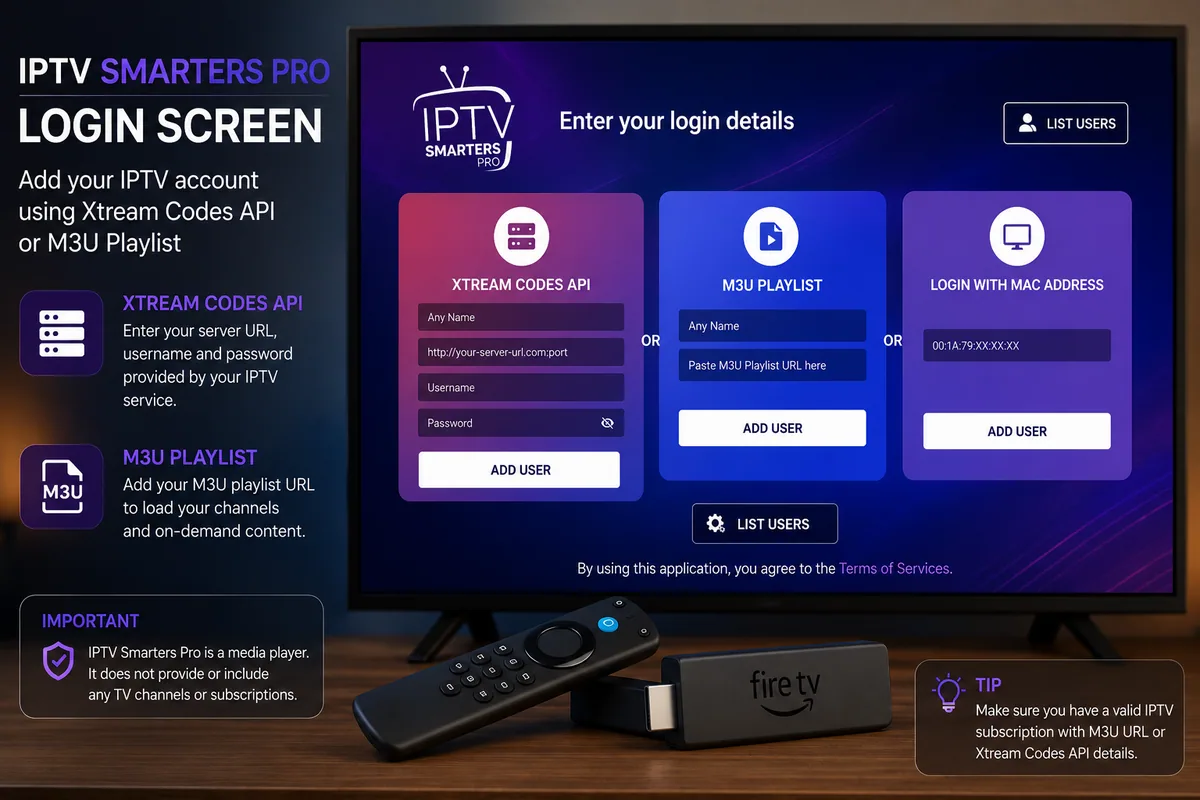
Open IPTV Smarters Pro from your Fire TV applications library. Depending on the version installed, you may first be asked to accept the terms of use or select a device layout before reaching the login screen.
The available login methods can vary between versions of the app.
Option 1: Log In With Server Credentials
Some authorised providers supply the following details:
- A username
- A password
- A server or portal URL
- An optional profile name
Enter each field exactly as provided. Avoid adding spaces before or after the username, password, or server address.
Server-based login can be convenient because the app may automatically import channel categories, programme-guide information, films, and series from the connected service. Only use credentials for a service you are authorised to access.
Common Server Login Mistakes
Common causes of login failure include:
- Entering https when the supplied address uses http
- Leaving out the required port number
- Adding an unnecessary slash to the server address
- Confusing the profile name with the account username
- Using the wrong capitalisation in a case-sensitive login
- Copying a password with an extra space
- Attempting to use expired credentials
- Trying to connect while the provider server is temporarily unavailable
If the login fails, compare every field with the original details before reinstalling the application.
Option 2: Add an M3U Playlist
An M3U playlist is a text-based file or URL that contains media locations and related channel information.
To add an M3U playlist:
- Select the playlist or M3U login option.
- Enter a clear name for the playlist.
- Choose M3U URL if you are using a remote link.
- Enter or paste the complete playlist address.
- Save the playlist.
- Allow the app time to import and organise the available content.
IPTV Smarters applications commonly support playlist formats such as M3U, although the exact options can vary by app version and device.
Long playlist URLs can be difficult to enter using a Fire TV remote. Using the official Fire TV mobile app for text input can make the process easier, but check every character carefully before saving.
Option 3: Load a Local Playlist File
Some versions of IPTV Smarters Pro allow users to import a playlist stored directly on the device or local network.
This method may be useful for:
- A personally created media list
- Business or hospitality media systems
- Public-domain streams
- Your own video files
- An authorised local media catalogue
A local playlist can provide greater control over the content being loaded. However, it will not update automatically unless the file itself is replaced or refreshed with newer information..
Understanding the IPTV Smarters Pro Home Screen
After a successful login, the IPTV Smarters Pro home screen may display sections such as:
- Live TV
- Movies
- Series
- Catch-up
- EPG
- Multi-screen
- Recordings
- Settings
Not every feature will be available to every user.
For example, Catch-up requires the connected service to provide catch-up content, while the EPG depends on programme-guide data being supplied by the source. Recording features may also require app support, storage permissions, and sufficient free space on the device.
For this reason, the availability of individual features is not always controlled by IPTV Smarters Pro itself.
Recommended IPTV Smarters Pro Settings
Avoid changing multiple advanced settings immediately after installation. First confirm that normal playback works correctly, then adjust one option at a time so you can identify whether a particular change improves performance.
Choose the Right Stream Format
Some versions of the player may offer stream-format options such as Automatic, MPEG-TS, or HLS.
Start with Automatic unless your authorised service recommends a specific format. Change this setting only when certain streams fail to load or playback problems affect particular channels.
Use Hardware Decoding Carefully
Hardware decoding can reduce processor workload and improve playback performance on compatible Fire TV devices.
However, codec incompatibility may sometimes cause issues such as:
- A black screen
- Visual artefacts
- Audio without video
- Playback instability
If a stream does not play correctly:
- Note the current decoder setting.
- Change the decoder option once.
- Test the same stream again.
- Restore the original setting if there is no improvement.
Changing one option at a time makes troubleshooting much easier.
Configure Parental Controls
If IPTV Smarters Pro provides parental-control options, create a secure PIN to restrict access to selected categories or content.
Do not reuse a PIN associated with your bank card, smartphone, Amazon account, or another sensitive service.
Remember that parental controls inside the player may depend on how categories are labelled by the connected media source. They should therefore complement Fire TV account controls and appropriate household supervision rather than replace them.
Use an External Player Only When Necessary
An external media player can sometimes resolve compatibility problems involving certain video codecs or audio formats that the built-in player cannot handle correctly.
However, using an external player may make navigation less consistent and can interfere with features such as programme-guide integration, playback history, or other app-specific functions.
Use the built-in player first and switch to an external player only when you are trying to solve a specific compatibility issue.
How to Reduce Buffering on IPTV Smarters Pro
Buffering does not automatically mean that IPTV Smarters Pro is faulty. Streaming depends on several different parts of the delivery chain, including:
- The original media server
- The provider’s available capacity
- The wider internet route
- Your broadband connection
- Your home network
- The Fire TV device
- The media player and decoder
A problem at any one of these stages can affect playback.
Test More Than One Stream
If only one channel buffers while others work normally, the issue is more likely to be related to that individual stream rather than the Firestick or player.
If every channel is affected, open another legitimate streaming application and test playback there as well.
When multiple streaming services perform poorly, investigate your broadband connection, Wi-Fi network, or Fire TV device before assuming IPTV Smarters Pro is responsible.
Restart the Complete Connection Path
Restart the main devices involved in streaming:
- Fire TV Stick
- Broadband router
- Any Wi-Fi extender or mesh device
- IPTV Smarters Pro
Restarting the complete connection path can clear temporary network issues, stalled background processes, and short-term software problems.
Prefer a Stable Network Connection
A strong Wi-Fi icon does not necessarily mean that the connection is stable enough for uninterrupted streaming.
For more reliable playback:
- Keep the router away from thick walls and sources of electrical interference.
- Use 5 GHz Wi-Fi when the Firestick is relatively close to the router.
- Try 2.4 GHz Wi-Fi when the signal needs to travel farther or pass through several walls.
- Consider a compatible Ethernet adapter if Wi-Fi remains inconsistent.
- Pause large downloads, cloud backups, and other bandwidth-heavy activity while streaming.
- Avoid placing the Firestick where surrounding equipment may trap excessive heat.
Connection stability is generally more important than achieving a single high speed-test result.
Clear the App Cache
Open:
Settings → Applications → Manage Installed Applications → IPTV Smarters Pro → Clear Cache
Start by clearing the cache rather than the application data.
The Clear Data option can remove saved logins, playlists, preferences, and other stored settings. Use it only when you are prepared to configure IPTV Smarters Pro again from the beginning.
Common IPTV Smarters Pro Problems and Fixes
IPTV Smarters Pro Will Not Install
Installation problems can be caused by several issues, including:
- Insufficient Firestick storage
- A damaged or incomplete APK file
- An incompatible app version
- Downloader installation permission being disabled
- A failed download
- An APK built for a different processor or operating system
Delete the failed installation file, restart the Firestick, check the available storage, and obtain a compatible version from a verified source before trying again.
“App Not Installed” Error
The “App not installed” message can appear when another version of the same application is already present or when the new APK uses a different signature from the installed version.
Do not remove the existing application until you have saved any legitimate playlist details, login credentials, and settings required to restore your configuration.
Login Failed or User Not Authorised
If IPTV Smarters Pro rejects your login, check the following:
- Username
- Password
- Server address
- Subscription status
- Device or connection limits
- Number of active sessions
Testing the same authorised account on another compatible device can help determine whether the problem is related to the Firestick or the service account.
Never share usernames, passwords, playlist URLs, or login screenshots in public forums or social-media posts.
Playlist Loads but Channels Do Not Play
If the playlist imports successfully but streams will not start, possible causes include:
- Expired stream links
- A temporary server problem
- An unsupported stream format
- A decoder compatibility issue
- Geographic restrictions applied by the authorised service
- A simultaneous connection limit
- Incorrect date or time settings on the Firestick
Test another authorised stream and change the decoder or player setting only once before testing again.
If the same problem occurs across several devices, contact the IPTV provider, as the issue is more likely to be related to the source than the player.
EPG Is Missing or Incorrect
Electronic Programme Guide problems are often caused by incomplete, outdated, or mismatched programme data rather than IPTV Smarters Pro itself.
Try the following:
- Refresh the EPG.
- Refresh the playlist.
- Check the Fire TV time zone.
- Allow enough time for the initial programme data to import.
- Confirm that the connected source actually provides EPG information.
Reinstalling IPTV Smarters Pro will not create programme-guide data if the connected service does not supply it.
Video Plays but There Is No Sound
If the picture appears but no audio is available, try:
- Switching to another audio track
- Testing the built-in media player
- Testing a trusted external player
- Temporarily disabling surround-sound output
- Restarting the television, soundbar, and Firestick
- Checking whether the same stream has sound on another device
The stream may be using an audio format that the current player, television, or sound system cannot decode correctly.
Black Screen With Audio
If you can hear audio but see only a black screen, try changing the decoder or media-player setting.
You can also test a lower-resolution version of the same stream if one is available. If the issue affects only one channel, the source stream itself is more likely to be responsible.
App Closes or Freezes
Start by clearing the IPTV Smarters Pro cache and restarting the Firestick.
If the problem continues:
- Check the available storage.
- Close unused applications running in the background.
- Install any available Fire OS updates.
- Update IPTV Smarters Pro from a trusted source.
- Remove duplicate or abandoned media-player apps.
- Reinstall the application only after saving the login details you need.
Making one change at a time will make it easier to identify the actual cause of the problem.
Is IPTV Smarters Pro Safe?
The genuine IPTV Smarters Pro application is designed to function as a media player. However, the overall safety of your setup also depends on where the app, installation file, and service credentials come from.
Reduce unnecessary risk by following these precautions:
- Prefer official app-store listings whenever available.
- Avoid modified or “premium unlocked” APK files.
- Do not enter account credentials into websites claiming to activate the app.
- Review application permissions before accepting them.
- Disable unknown-app installation permissions after setup.
- Never publish playlist URLs or login details.
- Use a unique password when the connected service allows one.
- Keep Fire OS up to date.
- Remove applications you no longer use.
- Be cautious of anonymous sellers requesting cryptocurrency or direct bank transfers.
- Do not grant remote access to your Firestick for routine installation or configuration.
No guide, VPN, antivirus application, or security tool can guarantee that an unverified APK is safe. The most reliable approach is to use genuine software from trusted sources and connect only to services you are authorised to access. or illegal streaming service is safe.
IPTV Smarters Pro Versus an IPTV Subscription
| IPTV Smarters Pro | IPTV or media service |
| Plays and organises media | Supplies the media source |
| Provides a user interface | Supplies playlists or credentials |
| May display EPG data | Supplies the programme data |
| Can be installed on a device | Operates independently from the player |
| Does not automatically include channels | Determines which authorised content is available |
| May be replaced with another compatible player | Remains responsible for account and server access |
Understanding this difference makes troubleshooting much faster.
When the app opens but credentials fail on every device, investigate the account or service.
When the account works elsewhere but the Firestick app crashes, investigate the application, device or network.
Final Verdict
IPTV Smarters Pro offers a practical way to organise and play authorised live streams, playlists, and on-demand media on an Amazon Fire TV Stick. Its value comes from its interface, playback controls, and playlist-management features rather than access to free premium television.
If you are still comparing different media players, our IPTV app comparison explains the main differences between popular options.
For a safer and more reliable setup:
- Search the Amazon Appstore before attempting manual installation.
- Use a verified official installation file only when sideloading is necessary.
- Enable installation permission only for the application performing the installation.
- Connect only authorised playlists, accounts, or media sources.
- Change one playback setting at a time when troubleshooting.
- Investigate buffering across the complete connection path rather than assuming the app is responsible.
- Treat app installation and legal content rights as separate issues.
Avoid modified APK files, unverified Downloader codes, and sellers making unrealistic promises about access to paid UK television. A reliable media player cannot make an unstable, unsafe, or unauthorised source dependable.
Frequently Asked Questions About IPTV Smarters Pro
Does IPTV Smarters Pro Come With Channels?
No. IPTV Smarters Pro is a media player rather than a television provider.
Users must connect their own authorised playlist, server credentials, or compatible media source. The application does not automatically include live television channels, films, sports, or a subscription package.
Can I Install IPTV Smarters Pro on a Firestick?
A compatible version of IPTV Smarters Pro can be installed on many Fire TV devices.
Search the Amazon Appstore first. If a suitable version is unavailable, manual installation may be possible using Downloader and a verified APK obtained from a trusted source.
Is IPTV Smarters Pro Free?
Pricing and availability can vary depending on the platform, application version, and included features.
Some versions may be free to install, while others may offer premium or paid functionality. Paying for the media player does not normally include a television subscription or premium content.
Do I Need to Enable ADB Debugging?
No. ADB Debugging is not normally required when installing an application directly through Downloader.
ADB is primarily intended for Android Debug Bridge connections used by developers and technical users for testing and debugging. Enable only the settings required for your chosen installation method.
Why Is IPTV Smarters Pro Buffering?
Buffering can have several causes, including:
- Source-server congestion
- Internet routing problems
- Broadband instability
- Weak or inconsistent Wi-Fi
- Firestick performance issues
- Decoder compatibility
- Problems with an individual stream
Test several channels and another legitimate streaming application before assuming IPTV Smarters Pro itself is responsible.
Why Does My IPTV Smarters Pro Login Fail?
A failed login may be caused by an incorrect username, password, or server address.
The account could also be expired, limited by simultaneous connection rules, or temporarily unavailable. Compare the login information carefully and confirm account status privately with the authorised service provider.
Can IPTV Smarters Pro Play 4K Video?
A compatible version may support high-resolution playback, including 4K media.
However, successful 4K streaming also depends on the Fire TV model, television resolution, source quality, codec support, network stability, and provider capacity. IPTV Smarters Pro cannot turn an HD source into genuine 4K content.
Is an M3U Playlist the Same as an IPTV Subscription?
No. The two terms describe different things.
An M3U playlist is a file or URL containing media locations and related information. An IPTV subscription is an account or service arrangement that may provide access to authorised content.
An M3U playlist can form part of a subscription service, but the terms are not interchangeable.
Is It Legal to Use IPTV Smarters Pro in the UK?
Using IPTV Smarters Pro to play content you own or are authorised to access can be lawful.
However, using any application or modified streaming device to access copyrighted or paid content without permission may breach UK copyright law or the terms of the relevant service.
Should I Use a Free Downloader Code?
A Downloader code is simply a shortcut that redirects to a web address. The code itself does not prove that the destination file is genuine, current, or safe.
Codes may also change destination after publication. A verified developer website or trusted official source is generally preferable to an undocumented code.
Related guides: How to install IPTV on Firestick | Best IPTV apps compared | Downloader codes | Choosing an IPTV subscription | Buffering and troubleshooting | Our DMCA policy
About the Author
IPTV Firestick 4K Editorial Team
The IPTV Firestick 4K Editorial Team produces practical guides covering Amazon Fire TV devices, streaming applications, IPTV players, device compatibility, and common troubleshooting.
Each guide is reviewed for clarity, accuracy, and relevance before publication. Because Fire OS menus, app availability, device support, and software features can change, we regularly review published tutorials and update instructions when necessary.
IPTV Firestick 4K also offers IPTV subscription services alongside its editorial content. We do not own, produce, or control the individual television channels made available through third-party services.
This guide focuses specifically on the IPTV Smarters Pro media-player application and is editorially separate from the subscription services we offer. Our aim is to help readers install and use legitimate media-player applications with content and services they are authorised to access.