Has your channel ever frozen just as a match, film, or programme reaches its most important moment? IPTV buffering can quickly turn a relaxing evening into a frustrating cycle of restarts, app reloads, and router checks.
Fortunately, most buffering problems are caused by a few common issues, including weak Wi-Fi, limited Firestick storage, corrupted app cache, peak-time network congestion, or an overloaded IPTV provider.
This guide helps UK Firestick users identify the cause of IPTV buffering, apply the right fix, and assess whether an IPTV Firestick subscription offers the reliability and performance they need.
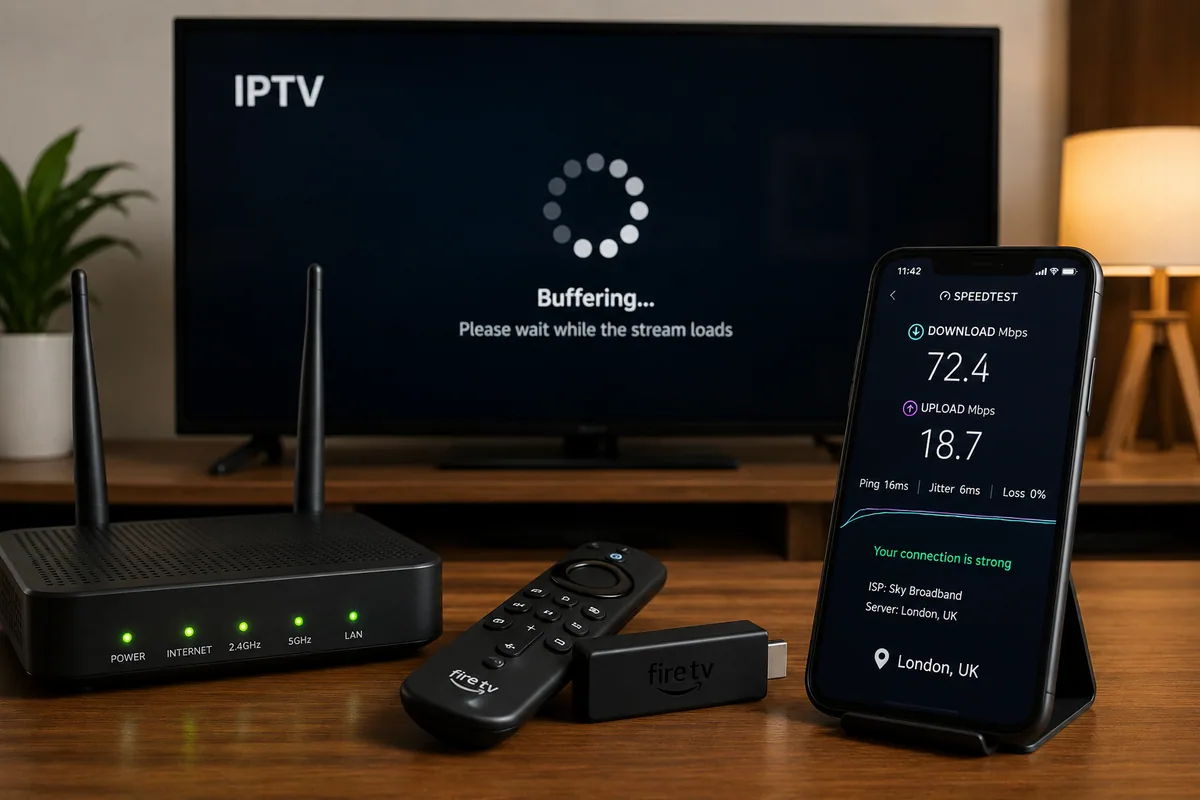
What Causes IPTV Buffering on a Firestick?
IPTV buffering occurs when your Fire TV device cannot download or process video data quickly enough to maintain smooth playback. While slow internet speeds can contribute to the problem, they are not always the main cause.
Weak Wi-Fi and Network Congestion
Because a Firestick is usually positioned behind the television, its Wi-Fi signal can be affected by walls, distance from the router, interference, and the number of connected devices on your home network.
Ofcom considers a “decent” broadband connection to provide at least 10 Mbit/s download and 1 Mbit/s upload speeds. For 4K or UHD streaming, especially in homes with several connected devices, a superfast connection of at least 30 Mbit/s is generally more suitable.
IPTV Provider Congestion
In some cases, buffering is caused by the IPTV provider rather than your internet connection. Provider servers may struggle to handle increased demand, particularly during major football matches, live sporting events, or busy weekend periods.
If services such as BBC iPlayer or Netflix stream normally while several IPTV channels continue to buffer, the IPTV provider may be the source of the problem.
Cache, Storage, and App Issues
Fire TV apps store temporary files to help content load more efficiently. Over time, however, the cache can become too large or corrupted, which may cause an IPTV app to freeze, crash, or respond slowly.
Amazon recommends troubleshooting problematic Fire TV apps by clearing their cache and data, restarting the device, or reinstalling the app if necessary.
Expert Insight: Try playing the same IPTV channel on another device. If the issue occurs there as well, the provider may be responsible. If the buffering only happens on your Firestick, investigate the Wi-Fi connection, available storage, and the IPTV app itself.
How to Fix IPTV Buffering Quickly
Begin with the simplest troubleshooting steps, as they can resolve many IPTV buffering issues without requiring advanced configuration changes.
Restart the Firestick and Router
On your Firestick, go to Settings > My Fire TV > Restart.
Next, switch off your router for approximately 60 seconds before turning it back on. Restarting both the Fire TV device and your home network is one of the standard troubleshooting steps recommended by Amazon for streaming and connectivity problems.
Test Your Internet Speed Near the Television
Run a speed test directly on the Firestick, or place your smartphone beside the television and test the connection from there. Testing your internet speed close to the router may give misleading results if the Wi-Fi signal is significantly weaker where the Firestick is located.
It is also worth repeating the test during the evening. Ofcom commonly uses the period between 8 pm and 10 pm when assessing busy-time broadband performance, as network demand is often higher during these hours.
| Stream Quality | Practical Speed Target |
| SD | 5–10 Mbps |
| HD | 10–20 Mbps |
| Full HD | 20–30 Mbps |
| 4K/UHD | 30 Mbps or more |
These are working targets, not guarantees. Server quality and Wi-Fi stability still affect IPTV Buffering.
Clear the App Cache
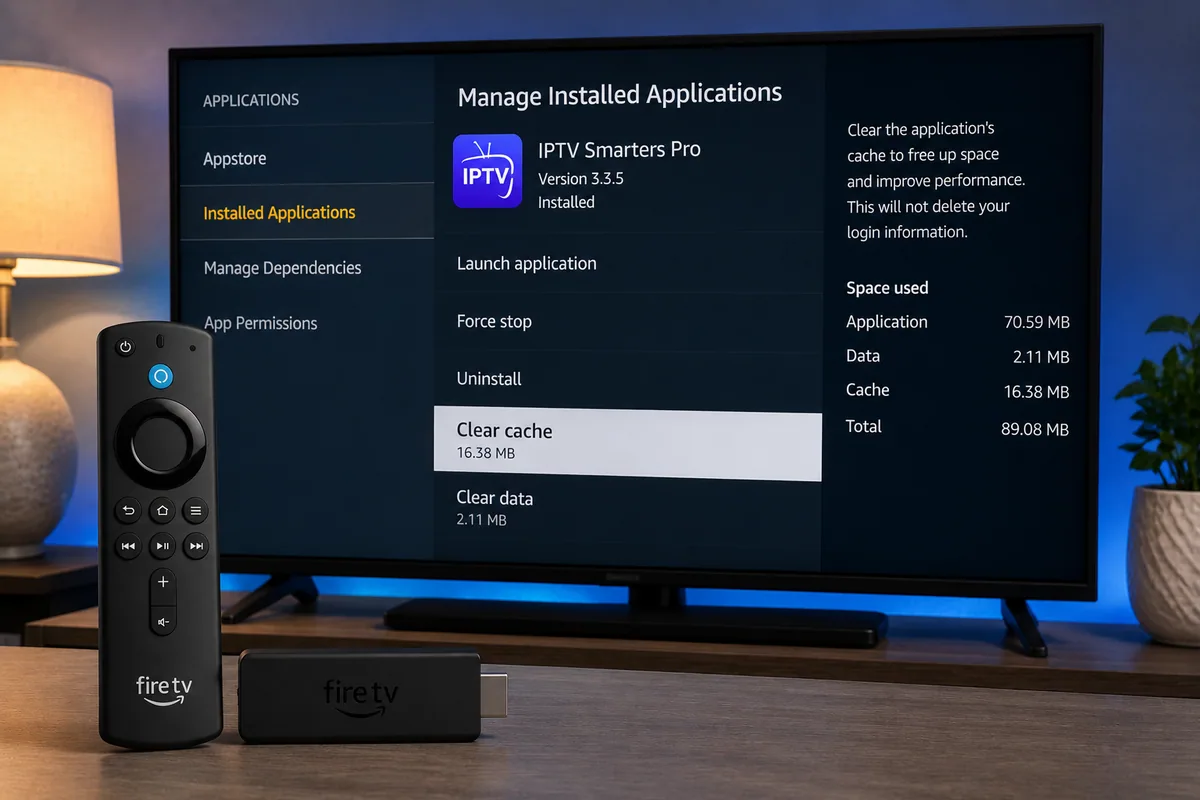
Clearing the IPTV app’s cache can help resolve freezing, slow loading, and playback issues. Follow these steps:
- Open Settings.
- Select Applications.
- Choose Manage Installed Applications.
- Select your IPTV player.
- Choose Clear Cache.
- Reopen the app and test the stream again.
Use the Clear Data option only after saving your login credentials, playlist information, or other important settings. Clearing app data may reset the application and remove stored preferences.
Free Up Firestick Storage
Delete apps you no longer use and clear large caches from streaming or media applications.
When a Firestick has very little free storage, overall performance can slow down. This may affect IPTV playback because the app needs available space for temporary files and normal processing.
Pro Tip: Change only one setting at a time, then test the same IPTV channel for at least five minutes. This makes it easier to identify which change actually resolved the buffering problem.
Improve Wi-Fi for IPTV Fire Stick Streaming
A high-speed broadband package will not guarantee smooth IPTV streaming if your Firestick is receiving a weak or unstable Wi-Fi signal.
Use the Right Wi-Fi Band
Use the 5 GHz band when your router is relatively close to the Firestick. It can often provide faster speeds and experience less interference from nearby devices.
The 2.4 GHz band may be more reliable when the signal needs to travel over a longer distance or pass through several walls. Wi-Fi performance varies between properties, so test both bands and use the one that delivers the most stable connection near your television.
Move the Router and Firestick
Position your router in an open and elevated location rather than placing it inside a cabinet, behind furniture, or close to objects that may block the signal.
You can also use an HDMI extender to move the Firestick slightly away from the back of the television. This can improve wireless reception and may also provide better airflow around the device.
Use Ethernet for Live Events
A compatible Ethernet adapter allows your IPTV Fire Stick to use a wired internet connection. This can provide more consistent performance, particularly during live sports and other high-demand events.
For example, a London flat may have a 100 Mbps broadband package but still experience buffering during Saturday football matches. A speed test beside the router may show 95 Mbps, while the Firestick receives only 11 Mbps near the television.
Moving the router or switching to Ethernet can resolve IPTV buffering in this situation because the problem is caused by the weak final Wi-Fi connection rather than the broadband package itself.
Expert Insight: Connection stability is often more important than maximum speed. A consistent 30 Mbps connection can provide smoother streaming than Wi-Fi that repeatedly fluctuates between 80 Mbps and 5 Mbps.
What to Do When IPTV Does Not Work
If IPTV stops working completely, first identify the specific problem before assuming it is a standard buffering issue. Different symptoms can point to different causes, such as the IPTV app, internet connection, Firestick settings, or the service provider.
| Symptom | Likely Cause | Best Action |
| One channel fails | Source feed issue | Try another channel and report it |
| Every channel freezes | Network or server issue | Test another app and device |
| App will not open | Cache or installation fault | Clear cache, restart, or reinstall |
| Login is rejected | Expired or incorrect account | Check subscription details |
| Works off-peak only | Provider congestion | Contact support or compare services |
Update or Reinstall the App
Make sure both your IPTV application and Fire TV software are fully up to date. Outdated software can cause compatibility problems, playback errors, or unexpected crashes.
If the issue continues, save your login credentials and other important account details before reinstalling the IPTV player. Only download the application from a trusted and reputable source.
Avoid unfamiliar download websites that distribute modified apps or request permissions that are not necessary for normal streaming.
Check Your Subscription Details
Review your account information carefully and confirm the following:
- Subscription expiry date
- Username and password
- Playlist or portal URL
- Device limit
- Simultaneous connection limit
Some IPTV subscriptions allow only one active stream at a time. If another television, phone, tablet, or streaming device is already using the account, disconnect it and test the Firestick again.
Pro Tip: Keep a note of the affected channel, time of the issue, device used, and exact error message. Providing clear details can help the support team identify IPTV buffering or account-related problems more quickly.
Choosing an IPTV Firestick Subscription
Even a well-optimised home network cannot compensate for unreliable provider infrastructure. For this reason, it is important to compare IPTV services carefully before committing to a long-term subscription.
Test Performance, Not Just Channel Numbers
A large channel list offers little value if popular UK streams become unstable or unavailable during peak viewing hours.
Before subscribing, look for:
- A short trial or monthly subscription option
- Clearly stated device and connection limits
- Reliable performance during UK peak hours
- Customer support available during evenings and weekends
- A stable electronic programme guide (EPG)
- Functional catch-up TV features
- Transparent renewal and cancellation policies
- Compatibility with your specific Fire TV model
Test the service during the times you normally watch television. Switch between several HD channels and leave at least one stream running for around 20 minutes. Testing only during quieter daytime hours may not reveal congestion that occurs in the evening.
Use Authorised Services
Choose IPTV services that are authorised to distribute the content they provide.
Avoid sellers that hide their business identity, provide unclear terms, use difficult-to-reverse payment methods, or make unrealistic claims about access to premium channels. Legitimate services with clear policies generally provide stronger consumer protection, more reliable billing, and better customer support.
Expert Insight: Begin with a one-month subscription where possible. Testing the service during real peak viewing hours provides far more useful information than promises of “zero IPTV buffering” or exceptionally large channel counts.
Five-Minute IPTV Buffering Checklist
Follow this troubleshooting order whenever IPTV continues to buffer:
- Test two or more different channels.
- Open another streaming service to check your internet connection.
- Restart the IPTV application.
- Restart both the Firestick and router.
- Test your internet speed near the television.
- Clear the IPTV player’s cache.
- Pause downloads and heavy internet activity on other devices.
- Switch between Wi-Fi bands or connect through Ethernet.
- Check the subscription expiry date.
- Confirm the permitted device and simultaneous connection limits.
- Contact the provider with specific examples of the problem.
Following this process helps determine whether the issue comes from the Firestick, home network, IPTV application, or service provider. It can also prevent unnecessary steps such as performing a factory reset or upgrading your broadband package when the real cause lies elsewhere.
Conclusion
IPTV buffering can be caused by several factors, including the service provider, broadband connection, Wi-Fi signal, or Firestick application. Start with basic troubleshooting by restarting your devices, testing the connection speed, clearing the app cache, freeing up storage, and checking the same stream on another device.
If IPTV continues to buffer after completing these checks, evaluate the service itself before upgrading your broadband package. Compare IPTV Firestick options carefully, test performance during peak UK viewing hours, and choose an authorised provider with transparent terms and reliable customer support.
Frequently Asked Questions
Why Does My IPTV Keep Buffering Every Few Seconds?
Frequent IPTV buffering is often caused by unstable Wi-Fi, provider congestion, limited Firestick storage, or heavy internet usage elsewhere in the home.
Start by testing another streaming app and, if possible, the same IPTV service on another device. Then restart your Firestick and router, test the internet speed near the television, and clear the IPTV player’s cache.
What Internet Speed Do I Need for IPTV on Firestick?
For a single stream, around 10–20 Mbps may be sufficient for HD viewing, while Full HD streaming may require approximately 20–30 Mbps. For 4K content, aim for at least 30 Mbps, with additional bandwidth available for other connected devices.
However, connection stability is just as important as headline speed. Wi-Fi signal strength, provider server performance, and network congestion can all affect playback quality.
How Do I Clear an IPTV App Cache on Firestick?
Go to Settings > Applications > Manage Installed Applications, then select your IPTV player.
Choose Clear Cache and reopen the app. Use Clear Data only after saving your login credentials, playlist details, or other important information, as this option may remove the app’s stored settings.
Why Does IPTV Work on My Phone but Not My Firestick?
Your phone may have a stronger Wi-Fi connection, more available storage, or a newer version of the IPTV application.
Place your phone beside the Firestick and compare the connection speeds. You can also update the Firestick software, clear the IPTV app cache, test both the 2.4 GHz and 5 GHz Wi-Fi bands, and consider using a compatible Ethernet adapter for a more stable connection.
Can the IPTV Provider Cause Buffering?
Yes. IPTV buffering can be caused by provider congestion, overloaded servers, unreliable source feeds, or poor network routing, even when your broadband connection is performing normally.
If mainstream streaming services work smoothly while the same IPTV channels experience problems across multiple devices, record specific examples and contact the provider. Persistent issues during peak viewing hours may indicate that it is worth considering another authorised service.
About the Author
James Carter is a streaming technology writer with 10 years of experience covering Fire TV devices, home networking, and IPTV troubleshooting. He has helped UK viewers identify playback problems, improve network performance, and create more reliable home streaming setups.