Firestick with IPTV: Setup, 4K, Guide & Controls
Published
Trying to use a firestick with IPTV but unsure whether you need a special device, player, subscription, or programme guide? You are not alone. A typical UK viewer may install a player successfully, enter their login, and then discover missing programme information or awkward remote navigation.
The good news is that the setup becomes much simpler once you separate the Firestick, IPTV player, and television service into three different parts. In this guide, you will learn how they work together, how to choose a Firestick model, what makes a useful EPG, how to configure a compatible service, and how to control everything comfortably from your sofa.
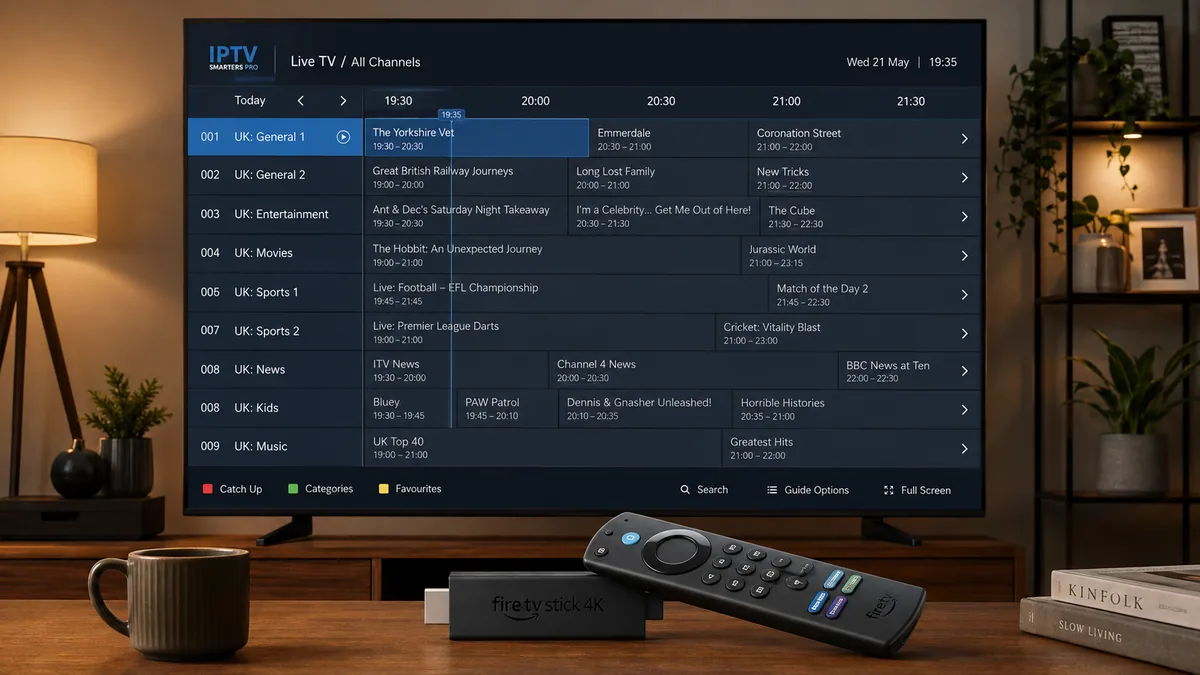
What Does Using a Firestick with IPTV Actually Mean?
A Fire TV Stick is primarily the streaming device connected to your television. Your IPTV player is the application that organises and plays streams, while your television provider supplies the channels or other authorised content.
Therefore, buying a firestick with IPTV does not automatically mean every device arrives with television channels included.
Amazon’s Fire TV ecosystem supports apps through the Amazon Appstore, although device software and application compatibility can vary between Fire TV generations. Amazon confirms that its Appstore continues to be supported on Fire TV products.
That distinction matters when comparing offers online.
What You Usually Need
A practical setup normally involves:
- A compatible Amazon Fire TV device
- A television with an available HDMI connection
- Reliable home broadband
- A compatible IPTV or streaming player
- Login or playlist information from an authorised provider
- An electronic programme guide (EPG), when supported
- A valid subscription for the content you want to watch
IPTV technology itself is simply a method of delivering television using internet protocols. However, the provider still needs the appropriate rights to distribute copyrighted programmes, films, sports, and television channels.
Pro Tip: Do not judge a service by an enormous advertised channel count. Programme-guide quality, stream stability, customer support, and clear content rights matter far more in everyday use.
Internet-delivered television is already mainstream in Britain. Ofcom reported that 86% of primary TV sets in use in the UK could be used to watch television online at the end of 2023.
Firestick 4K with IPTV: Is 4K Actually Worth Choosing?
Choosing a firestick 4K with IPTV makes sense when you have a 4K television and regularly watch compatible high-resolution content.
However, buying 4K hardware cannot transform a low-quality source into true 4K.
The complete chain matters:
| Your Priority | Suitable Setup | Why |
| Basic HD viewing | Standard compatible Fire TV Stick | Enough for straightforward HD streaming |
| 4K television | 4K-capable Firestick | Supports higher-resolution compatible streams |
| Heavy app usage | Higher-performance Fire TV model | Better suited to demanding navigation and multitasking |
| Best IPTV experience | Good device + stable provider | Hardware cannot fix overloaded streams |
| Easy browsing | Player with accurate EPG | Faster programme and channel discovery |
Amazon currently maintains several Fire TV generations and operating-system versions, so application compatibility should be checked for the specific model rather than assumed from the Firestick name alone.
Picture Quality Is Only Half the Story
When evaluating a firestick with IPTV, concentrate on stability first.
A crisp picture that freezes every few minutes creates a worse experience than a stable HD stream. Likewise, Wi-Fi interference, provider congestion, outdated apps, or device storage problems can affect playback even when your broadband package advertises high speeds.
Expert Insight: My preference would be a stable service with a reliable UK EPG over a provider advertising thousands of questionable channels. Most people regularly watch a relatively small collection of channels, so usable quality beats catalogue size.
How to Set Up a Firestick with IPTV Safely
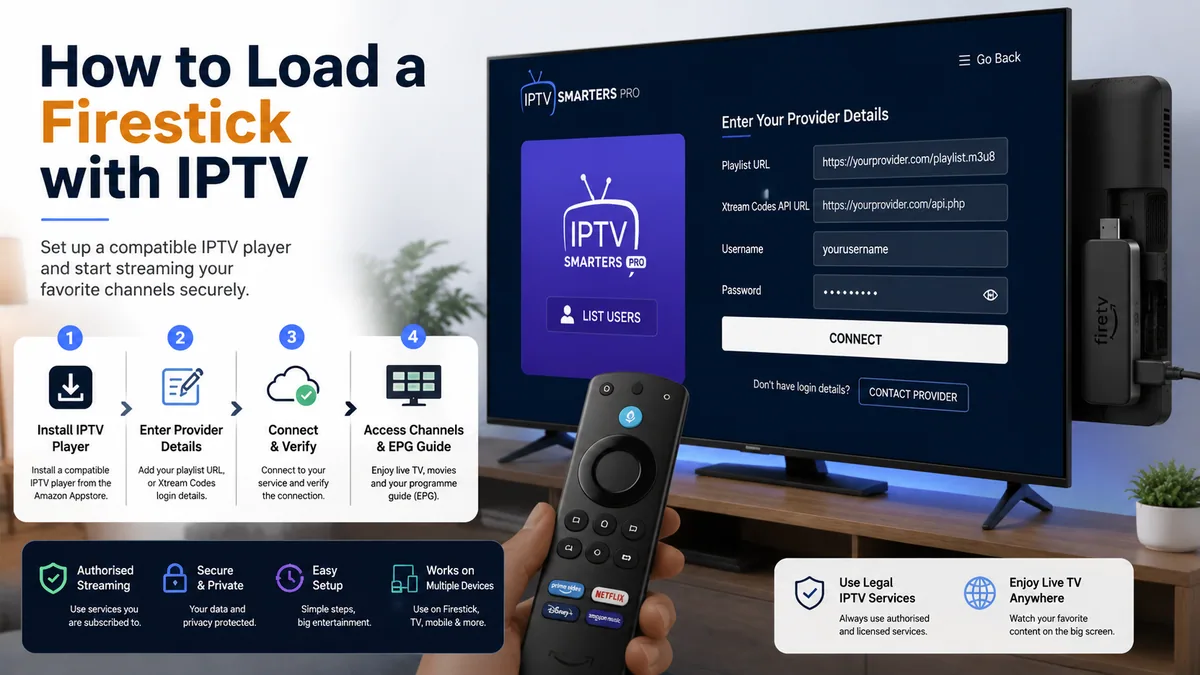
If you are searching for how to load a Firestick with IPTV, start with the simplest supported installation route rather than immediately changing advanced Fire TV settings.
Step 1: Connect and Update Your Firestick
Connect the Firestick to your television and home internet. Then complete Amazon’s normal setup process and install available system updates.
Keeping the device current can help with app compatibility and general performance.
Step 2: Choose a Compatible IPTV Player
Search your Fire TV’s available app catalogue for the application recommended by your authorised television provider.
Remember that the player and subscription are different products. A player provides the interface; it does not necessarily provide channels.
Popular player features can include:
- M3U playlist support
- Provider login support
- Live television categories
- Electronic programme guides
- Favourites
- Search
- Catch-up integration when the provider supports it
- Parental controls
- External-player support
Amazon uses its own Appstore for Fire TV rather than Google Play on Fire OS devices.
Step 3: Enter Your Provider Details
Open your chosen player and enter the account information supplied by your legitimate provider.
Depending on the application, that could involve a username, password, server address, playlist, or another supported authentication method.
Never enter payment details or important passwords into an app whose origin you cannot verify.
Step 4: Load Channels and the EPG
Once authenticated, allow the application time to load the available categories and programme data.
Then check several things before assuming the setup is complete:
- Open multiple channels.
- Test during the hours you normally watch television.
- Check whether the programme guide matches UK schedules.
- Add several favourites.
- Restart the application and confirm your settings remain saved.
Pro Tip: Test your firestick with IPTV under normal evening conditions. A setup that works perfectly during a quiet morning may behave differently when your household network is busy.
Best IPTV with Guide for Firestick: What Should You Compare?
People searching for the best IPTV with guide for Firestick often focus too heavily on price.
A useful EPG can be just as important as picture quality because it changes how quickly you find what is currently showing and what comes next.
Look for an Accurate UK Programme Guide
A strong EPG should make live television easier to navigate.
Check for:
- Correct UK channel names
- Programme titles
- Start and finish times
- Current and upcoming programmes
- Consistent channel-to-guide matching
- Fast guide loading
- Favourites or category filtering
A poorly mapped guide creates friction every time you use the television.
Check Compatibility Before Paying Long Term
Before committing to a lengthy subscription, confirm that the service supports your specific Fire TV model and preferred player.
Also check:
- Subscription length
- Number of permitted devices or connections
- Customer support availability
- Cancellation terms
- Trial or shorter plan availability
- EPG support
- HD or 4K availability
- Content licensing
Be especially cautious with providers making unrealistic promises about premium television without explaining who operates the service or whether the content is authorised.
Expert Insight: The best firestick with IPTV combination is not automatically the cheapest subscription with the largest catalogue. A transparent provider, responsive support, good EPG data, and predictable playback provide more long-term value.
How Do You Control Smart IPTV with Your Firestick?
Another common search is “how do you control Smart IPTV with your Firestick?”
In most compatible television players, you navigate using the Fire TV remote and the application’s on-screen interface. Exact button behaviour varies by player, but the directional controls, Select, Back, and menu options generally handle most navigation where the app supports them.
Make Navigation Faster
Once your firestick with IPTV is configured, organise it instead of scrolling through hundreds of entries every evening.
Start by:
- Adding frequently watched channels to Favourites
- Hiding irrelevant categories where supported
- Using EPG search instead of browsing manually
- Keeping channel groups logically organised
- Removing unused apps from your Firestick
- Learning your player’s shortcut controls
You can also use Amazon’s Fire TV mobile application as an additional navigation option. Amazon describes the app as providing Fire TV navigation plus keyboard input, which can make typing account details or searches easier than using an on-screen keyboard with a remote.
Pro Tip: Spend five minutes organising favourites after installation. That small job often saves more time than endlessly changing IPTV players looking for a “better” interface.
Common Firestick with IPTV Problems and Quick Checks
Even a correctly configured firestick with IPTV can occasionally develop playback or guide problems.
Buffering or Freezing
First determine whether the problem affects one channel or everything.
If everything struggles, restart the Firestick and router, reduce other heavy network activity, and check your Wi-Fi connection.
If only particular streams fail repeatedly, the source may be the problem rather than your Firestick.
Programme Guide Is Empty
Refresh the EPG inside your player if that option exists. If nothing appears afterwards, confirm that your provider actually supplies programme-guide data.
Changing the Firestick itself will not create missing EPG information.
App Feels Slow
Close unnecessary applications, restart the Fire TV device, and remove software you no longer use.
Also remember that different Fire TV models run different software platforms and versions, which can affect application compatibility. Amazon’s current documentation lists multiple Fire OS generations and newer platform variations across Fire TV hardware.
Expert Insight: Diagnose before replacing anything. Separating device, network, player, and provider problems prevents you from paying for a new subscription when your home Wi-Fi was the actual issue.
Conclusion
A reliable firestick with IPTV setup depends on four things working together: compatible Fire TV hardware, stable internet, a usable IPTV player, and a trustworthy service with accurate programme information. For 4K viewing, make sure the complete setup supports the quality you expect rather than relying on the Firestick name alone.
Compare compatibility, EPG quality, support, and content rights before committing to a provider. Then explore IPTV Firestick for installation guides, player comparisons, troubleshooting help, and suitable subscription options.
Frequently Asked Questions
Can I use IPTV on an Amazon Firestick?
Yes, you can use a compatible and legitimate internet television service on a Fire TV device through a supported player application. Your firestick with IPTV acts as the streaming hardware, while the player displays content supplied by your provider. Always confirm that your specific Fire TV model supports the application you intend to use.
Do I need an IPTV subscription for a Firestick?
Not simply to own or use the Firestick. Amazon Fire TV supports many streaming applications independently of IPTV subscriptions. However, if a particular IPTV player requires an external television service, you will need valid account or playlist information from that provider before its channels can appear.
Is Firestick 4K better for IPTV?
A firestick 4K with IPTV can be worthwhile for a 4K television, particularly when your legitimate streaming service supplies compatible 4K content. However, 4K hardware does not guarantee better service reliability. Your broadband connection, Wi-Fi stability, application, provider infrastructure, and source quality still affect the final viewing experience.
What is the best IPTV with guide for Firestick?
There is no universal winner. Look for a service with an accurate UK EPG, clear pricing, compatible player support, reliable customer service, sensible subscription options, and legitimate rights to its content. Test programme-guide accuracy and everyday playback rather than choosing solely from advertised channel numbers.
How do you control Smart IPTV with your Firestick?
Use the Fire TV remote and the controls provided by your chosen IPTV application. Directional navigation, selection, back functions, favourites, search, and programme-guide screens usually cover everyday viewing, although exact controls differ between applications. Amazon’s Fire TV mobile app can also provide navigation and keyboard input.
About the Author
IPTV Firestick 4K Editorial Team publishes practical guides covering Amazon Fire TV devices, streaming applications, IPTV players, and media setup. The site’s public author information does not state a verifiable number of years, so add your genuine experience figure here rather than publishing an invented credential.